Saving Modules
RMT Compose saves two completely different things, and confusing them costs people work.
| Module JSON | UI-state JSON | |
|---|---|---|
| Contains | one composition (baseNote + notes) | the library layout — sections, icon order, uploads |
| Saved by | Save Module, in the + menu | Save UI, in the module bar's footer |
| Downloads as | module.json | ui-state.json |
| Restores | your piece | your module bar |
A ui-state.json will not load as a module, and a module.json will not load as a UI state.
Save the composition
- Open the + menu (the plus/minus button at the right of the top bar).
- Click Save Module.
- A file called
module.jsondownloads.
Every export is named module.json
The filename is fixed. Save twice and your browser gives you module.json (1). Rename the file as soon as it lands — my-song-v2.json — or you will not be able to tell your saves apart.
If the export fails, a red Error exporting module: <message> banner appears for three seconds.
What gets saved
The file has exactly two top-level keys: baseNote and notes.
| Per note | |
|---|---|
id | The note's number |
| The six expression keys | startTime, duration, frequency, tempo, beatsPerMeasure, measureLength |
color | If set |
instrument | If set |
There is no measures array. Measure bars are saved as ordinary entries in notes — a measure bar is a note with a startTime and no duration and no frequency. Silences are entries with a startTime and a duration but no frequency. All three kinds share the same array and the same id space. See Module Format.
There is no metadata block: no name, no author, no version, no description. Any extra key you add to the file is dropped on the next save.
Expressions are saved, not values
The raw expression is written out, never the number it evaluated to:
{ "frequency": "base.f * (3/2)" }That is what makes a module portable. Load it somewhere else, or drop it onto a different note, and the fifth is still a fifth — relative to whatever it now sits on.
Legacy JavaScript syntax
A module authored in the older method-chain format saves back in that format, verbatim:
{ "frequency": "module.baseNote.getVariable('frequency').mul(new Fraction(3, 2))" }Saving does not convert legacy expressions to DSL, or DSL to legacy. The source text round-trips exactly as written.
Two things change on the way out
The file is reindexed. Measure bars are renumbered first (sorted by start time), then the remaining notes (also by start time), starting at id 1, and every [N] reference is rewritten to match. The ids in the downloaded file will generally differ from the ids you saw on screen. Reorder Module in the + menu applies the same renumbering to the live workspace, behind a confirmation — it is not something you need to do before saving.
The BaseNote gains a measureLength, even if it never had one. It is written in DSL form — beat(base) * base.bpm — so a pure-DSL file stays pure DSL on the way out.
Is there an autosave?
For the composition: sort of, and you should not rely on it.
The current module is written to your browser's localStorage (key rmt:moduleSnapshot:v1) on every undoable edit, when you switch tabs, and when you close the page. On the next visit the app resumes that snapshot instead of the default module. There is no "unsaved changes" prompt, no named projects, and no autosave indicator — the app picks up where you left off.
That is a session restore, not a backup. It lives in one browser profile, and clearing site data destroys it. Save real work to a file.
For the library layout: yes, genuinely. It is written to localStorage (key ui-state) whenever the bar changes, every 30 seconds, and on page unload.
Get your work into the library
Copy to Modules — the fast path
The shortest route from workspace to reusable module does not involve a file at all.
- Select several notes — shift-drag a marquee on empty background, or shift-click notes to toggle them in. On touch, long-press does both: on background it rubber-bands a marquee, on a note it toggles that note.
- The group widget appears. Click Copy to Modules.
- The selection is saved into the library's Custom section as
Selection (N notes), rooted at its earliest note with the dependency tree intact. Toast:Copied to Custom modules as "<name>".
It lands as an uploaded module: it is stored in the library layout, survives a reload, and can be dragged straight back onto any note.
Copy to Modules loses colours and instruments
The copied module carries only the structure — start times, durations, frequencies. Per-note color and instrument are dropped. This is a bug, not a design choice; re-apply them after you drop the module back in.
Upload a file
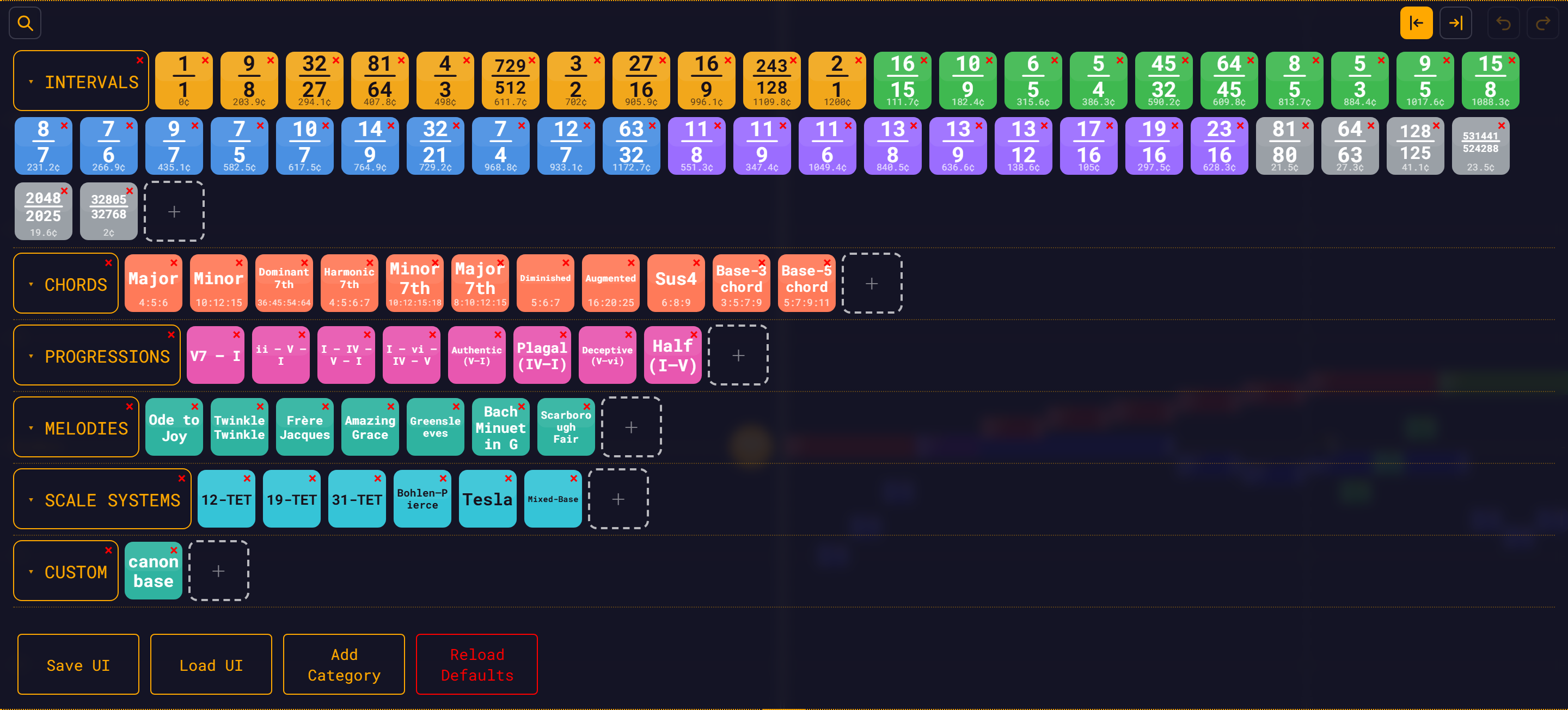
- Open the module bar.
- Click the dashed
+tile at the end of a section. - Pick your saved
.json.
The file is validated (expressions, colours, note ids) and rejected with Invalid module: <errors> if it does not pass. On success the icon appears in that section and the whole module JSON is stored in the library layout, so it survives a reload without you touching the repo.
Ship it with the app
To add a module to the library that ships in the repo, put the file under public/modules/<section>/ and add an item to that section's items array in public/modules/library.json — the single v2 manifest:
{
  "file": "custom/my-module.json",
  "name": "My Module",
  "tags": ["custom"]
}ratio, cents and family are optional and drive the icon's artwork and the search index. Run npm test afterwards — it validates every module in the manifest. Every manifest field, and what the test actually checks, is in Module Format.
Do not edit public/modules/<section>/index.json
Those files are a bare list of filenames, read only when library.json is missing or not version 2. They are a fallback, not the way in.
Save UI / Load UI
The module bar's footer carries four buttons: Save UI, Load UI, Add Category, Reload Defaults.
| Button | What it does |
|---|---|
| Save UI | Downloads the live library layout as ui-state.json (pretty-printed, with an exportedAt timestamp). Toast: UI state saved successfully! |
| Load UI | Opens a .json picker and restores a layout. Toast: UI state loaded successfully! |
| Add Category | Prompts for a name and adds an empty section. |
| Reload Defaults | Throws your layout away and rebuilds from the shipped manifest. |
Save UI captures:
- every section: its id, its label, and whether it is collapsed
- every icon: its name, its file path, which section it started in and which it is in now, whether it was uploaded, and its manifest metadata (ratio, cents, family, tags)
- the full module JSON of anything uploaded — an upload has no file on disk to re-fetch, so its data is embedded
- the drop mode (Start or End)
Built-in modules are stored by file path, not by value, which is what keeps the file small with a 79-module catalog.
Load UI re-validates every embedded module before applying it. Anything that fails is stripped of its data — the icon survives, its module does not — and the toast reads UI state loaded — N invalid module(s) skipped.
Reload Defaults is irreversible
Confirmation: "This will remove any changes to the UI, this action is irreversible, are you sure you wish to proceed?" → Yes, Reload Defaults. It clears the stored layout and rebuilds the library from library.json. Your uploads, your custom sections and your Custom-section modules are gone. Save UI first if you have anything you want back.
Short of that, you do not need to press anything: the stored layout is reconciled against the shipped manifest on every load, so an update to the shipped catalog reaches you automatically, and your uploads and custom sections are always preserved.
Sharing a module
A module is a plain JSON file. Email it, drop it in cloud storage, put it in a git repo. The recipient loads it through + menu → Load Module ▾ → Load Module from file…, or uploads it into their module bar.
No account, no plugin, no runtime — just the file.
Tips
- Rename the download. Every export is
module.json. Rename it the moment it lands. - Save before you load. Loading a file replaces the whole workspace. It is undoable with
Ctrl/Cmd + Z, but do not make undo your backup strategy. - Use
base.fandbeat(base), not numbers. A module written in absolute Hz and seconds cannot be re-rooted and is much less useful to anyone else. - Test after saving. Load the file back and listen. Reindexing renumbers everything, so this is a real check, not a formality.
- Version by hand.
my-song-v1.json,my-song-v2.json. There is no version history in the file.
See also
- Loading Modules — the other half of the round trip
- Module Format — what is in the file
- Module JSON Schema — the exhaustive reference
- Module Bar — organizing the library