Editing Notes
Click a note and the note widget opens on it. From there you can rewrite any of its expressions; in the workspace itself you can drag it, resize it, and step it by an interval.
Edits apply on Save
Typing in a Raw: field changes nothing. The Save button appears the moment you type, and the edit only lands when you press it. The one exception is the ADD NOTE / SILENCE section, whose Evaluated: previews are live.
Selecting a note
Click the note. It gets an orange ring and the widget opens, titled Note [7] Variables, Silence [7] Variables, Measure [7] Variables or BaseNote Variables depending on what you clicked.
- Click the same spot again to cycle through overlapping notes stacked under the pointer.
- Click empty background to clear the selection, close the widget, and move the playhead.
- If the padlock — the small lock button pinned to the bottom-right corner of the window — is engaged, clicking a note does nothing at all: the widget cannot be opened and nothing can be dragged. The padlock starts unlocked.
Selecting two or more notes swaps the note widget for the group widget. See Selection & Group Editing.
In the workspace
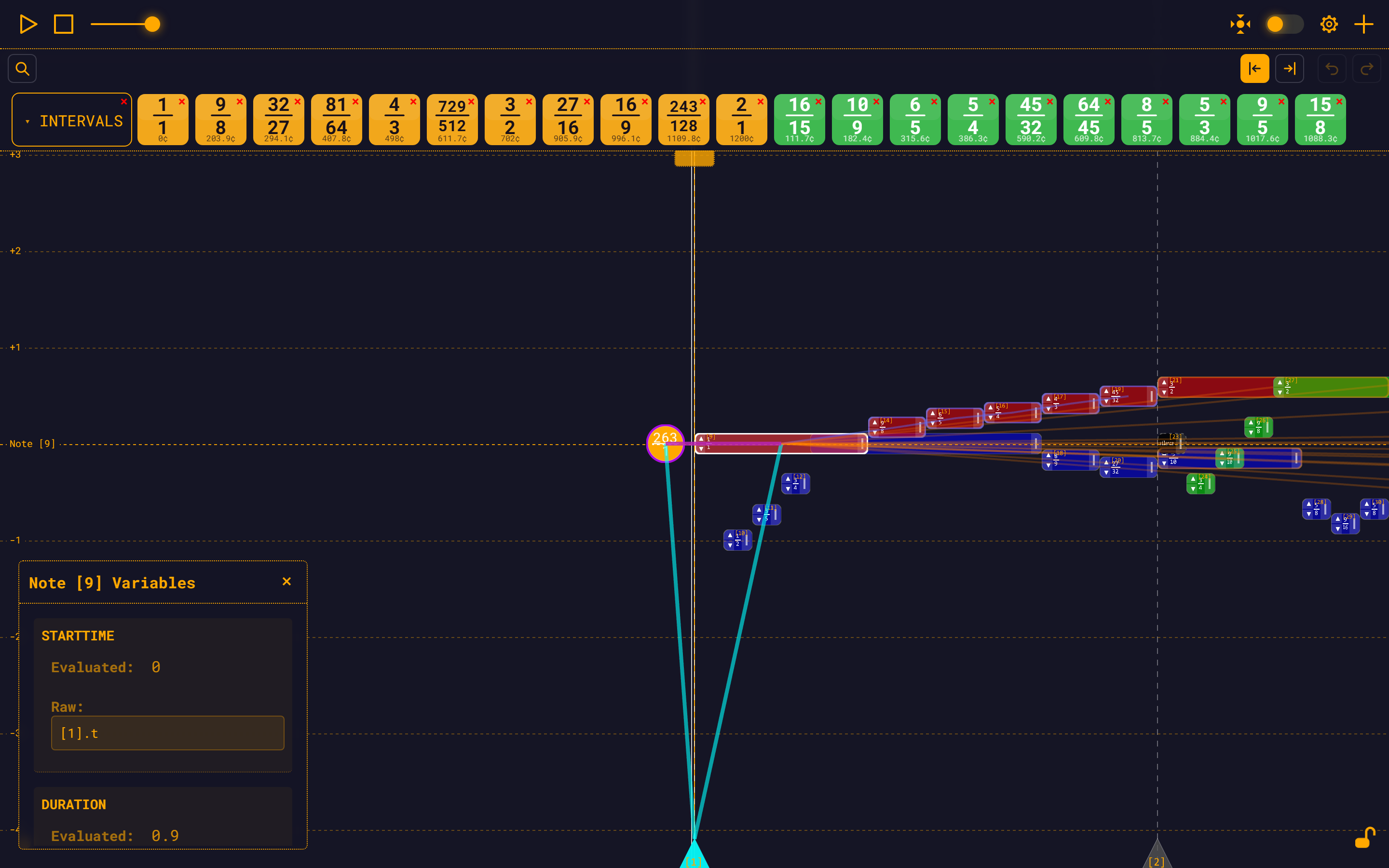
Moving a note
Drag the body of the note. The cursor becomes a grabbing hand.
- A drag moves the note in time only. Dragging up and down does not change the pitch — pitch is set by the frequency expression or by the arrows.
- Start times snap to a sixteenth — a quarter of a beat, using the tempo in effect at that note.
- A note can never be dragged earlier than the BaseNote's start time.
- Notes whose start time depends on the note you are dragging preview their new positions as you move.
Dropping the note rewrites its startTime expression to land where you let go.
Resizing a note
Every note has a full-height pull-tab along its inner right edge. Hover it and the cursor becomes ew-resize; drag it to change the note's duration.
- Duration snaps to a sixteenth, and cannot go below one sixteenth.
- Notes that start when this one ends move along with the new end.
Transposing with the arrows
Every note carries a narrow column on its left inner edge, split into an upper ▲ half and a lower ▼ half. Click a half to multiply that note's frequency by an interval.
The arrows are not octave buttons
They apply a user-chosen ratio, set in Settings → Arrows. The default is the octave — ▲ multiplies by 2/1, ▼ by 1/2 — but set the up interval to 3/2 and ▲ transposes by a perfect fifth. The workspace glyphs are always ▲/▼; they never show the ratio.
- Arrows act on one note — the one you clicked. There is no group transpose and no keyboard shortcut.
- Silences have no arrows (they have no frequency).
- The BaseNote is drawn as a circle and has no workspace arrows, but the widget's ▲/▼ buttons work on it. Transposing the BaseNote transposes the whole composition.
- Arrows can be switched off entirely in Settings → Arrows, which removes both the glyphs and their hit zones.
Transposing with Arrows is the full account: the interval settings, the quick-pick ratios, and how the factor is folded into the expression's coefficient instead of being stacked in front of it.
In the note widget
Each property gets a row with an Evaluated: readout (what it currently works out to) and a Raw: field (the expression). The Raw field always shows DSL, even for a note that was authored in the legacy method-chain format.
If an expression is invalid, self-referencing, or would create a cycle, pressing Save refuses the edit and shows the reason inline — a red message under the Save button and a red border on the field, both cleared on your next keystroke. The field keeps your text so you can fix it. (color is the exception: it pops an alert instead.)
Frequency
base.f * (5/4)      # just major third above the BaseNote
[3].f * (3/2)       # perfect fifth above note 3
440                 # an exact frequency in Hz
base.f * 2^(7/12) # a 12-TET fifth above the BaseNoteLegacy JavaScript syntax
module.baseNote.getVariable('frequency').mul(new Fraction(5, 4))
module.getNoteById(3).getVariable('frequency').mul(new Fraction(3, 2))
new Fraction(440)Start time
base.t                    # start with the BaseNote
[2].t + [2].d             # start when note 2 ends
base.t + beat(base) * 2 # two beats after the BaseNoteLegacy JavaScript syntax
module.baseNote.getVariable('startTime')
module.getNoteById(2).getVariable('startTime').add(module.getNoteById(2).getVariable('duration'))Duration
The duration row has a strip of note-length icons above the Raw field.
| Button | Length |
|---|---|
| Whole | 4 beats |
| Half | 2 beats |
| Quarter | 1 beat |
| Eighth | 1/2 beat |
| Sixteenth | 1/4 beat |
. | multiplies the chosen length by 3/2 |
.. | multiplies the chosen length by 7/4 |
Clicking an icon writes the expression into the Raw field and reveals Save. It does not commit — you still press Save. The dots toggle: click the selected dot again to remove it.
The widget highlights whichever icon matches the note's current duration. A duration that no icon can express — a triplet, say — leaves all of them unhighlighted.
beat(base)              # a quarter note
beat(base) * 2          # a half note
beat(base) * (3/4)      # a dotted eighth
[3].d # the same length as note 3, and tied to itLegacy JavaScript syntax
new Fraction(60).div(module.findTempo(module.baseNote))
new Fraction(60).div(module.findTempo(module.baseNote)).mul(new Fraction(2))
module.getNoteById(3).getVariable('duration')
1 is not one beat
1 is one second. At the default tempo of 100 that is closer to 1.67 beats. Use beat(base) for a beat.
Instrument
The INSTRUMENT row shows either Current: (the note has its own instrument) or Inherited: in grey (it is borrowing one), and a dropdown listing the nine registered instruments by their raw ids, alphabetically:
fm-epiano, organ, piano, sawtooth-wave, sine-wave, square-wave, triangle-wave, vibraphone, violin
piano and violin are multisampled instruments; the other seven are synthesised.
Inheritance follows the frequency reference. A note with no instrument of its own uses the instrument of the note its frequency points at, recursively. Set note 1 to violin, and every note whose frequency is [1].f * … plays as a violin unless it overrides it. A note that reaches the BaseNote and finds no instrument there falls back to the global default in Settings → Audio, which ships as sine-wave.
If a note has its own instrument — and it isn't the BaseNote — a Use Inherited button appears next to the dropdown. It clears the override and puts the note back on inheritance.
See Instruments.
Colour
Enter any CSS colour: rgba(255, 100, 100, 0.7), #ff6600, hsla(200, 70%, 60%, 0.7), or a named colour. An unparseable value pops an alert rather than failing silently.
Reshaping the dependency graph
The widget's EVALUATE section holds three buttons. Which ones appear depends on what you selected. Each asks for confirmation first.
| Button | Available on | What it does |
|---|---|---|
Liberate Dependencies | notes and silences | Rewrites every note that references this one so it references what this note references instead. The note itself survives, now with nothing depending on it. |
Evaluate to BaseNote | every note except the BaseNote — including measure bars | Rewrites this note's start time, duration and frequency so they reference only the BaseNote. TET power terms are preserved rather than flattened into an ugly fraction. |
Evaluate Module | the BaseNote only | Does the same to every note in the module at once. |
Liberate Dependencies is not offered on measure bars. Evaluate to BaseNote is not offered on the BaseNote — it is already there.
Both operations are explained in full on Dependencies.
Deleting
The DELETE NOTE section offers two buttons, and they are very different:
| Button | Effect |
|---|---|
Keep Dependencies | The note is removed, and everything that referenced it is liberated first — their expressions absorb this note's expressions, so they keep their positions, lengths and pitches. |
Delete Dependencies | The note and every note that depends on it are removed. This cascades. |
On the BaseNote the section is DELETE ALL NOTES instead, with a single Clean Slate button that removes every note except the BaseNote.
Cascade delete can take out a lot
Delete Dependencies follows the whole dependent chain, not just the direct children. Select the note first and look at the thin dependency lines running out of it — those are what will go. If you are not sure, use Keep Dependencies.
Clean Slate is undoable
The confirmation dialog says so itself: Clean Slate captures an undo snapshot like everything else, and Ctrl/Cmd+Z brings your notes back.
Undo and redo
| Action | Shortcut | Button |
|---|---|---|
| Undo | Ctrl/Cmd + Z | Undo, in the module bar |
| Redo | Ctrl/Cmd + Y or Ctrl/Cmd + Shift + Z | Redo, in the module bar |
- The history holds the last 50 changes.
- Both redo chords work:
Ctrl/Cmd + Yand theCtrl/Cmd + Shift + Zyou may know from other apps. - The shortcuts are ignored while your cursor is in a text field, so
Ctrl+Zinside aRaw:box undoes your typing, not your composition.
Where to go next
- Expressions — the syntax for the Raw fields.
- Dependencies — the coloured lines, and what breaks when you delete.
- Selection & Group Editing — marquee, group drag, group delete.
- Transposing with Arrows — choosing the arrow interval.