Workspace
The workspace is the WebGL2 canvas that fills the app below the two bars. It draws your composition on a time/pitch plane and it is where every direct edit happens: moving notes, resizing them, transposing them, dragging measures, and selecting groups.
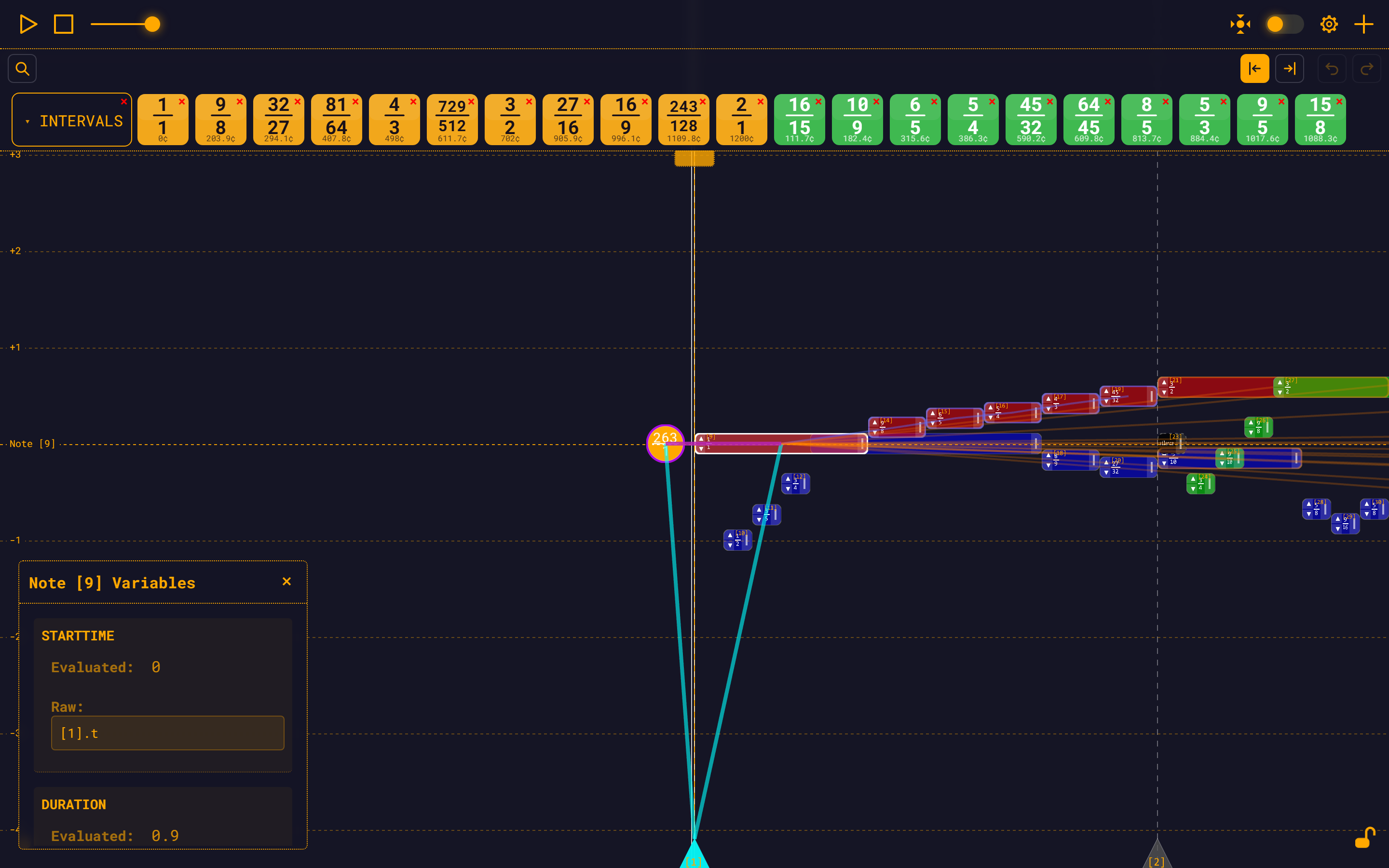
What you are looking at
| Element | What it is |
|---|---|
| Note rectangle | One note. Width is its duration, vertical position is its frequency. |
| Silence | A note with no frequency — a dark rectangle with a dashed border and the word silence. It occupies time and can be depended on, but makes no sound. |
| BaseNote circle | The filled circle at the origin. This is note id 0, the anchor every other note is ultimately measured against. |
| Measure bars | Vertical dashed lines. Two extra solid lines sit just outside the module's start and end. |
| Measure triangles | The handles along the bottom of the screen — one per measure. Click and drag these, not the line. |
| Octave guides | Dashed horizontal lines at each octave of the base frequency, labelled. |
| Playhead | The vertical line that sweeps across during playback. |
The vertical axis is logarithmic in frequency, so an octave is the same distance everywhere on the canvas, and so is a fifth. The horizontal axis is linear in time.
Note labels
Every note carries two labels:
[N]at the top-left — the note's id. This is the number you write in an expression:[5].t,[5].f.- A fraction in the middle — the note's frequency as a ratio of the base frequency.
A note whose frequency is irrational (any TET step, for instance) cannot be written as an exact fraction. Those notes show a fractional approximation prefixed with ≈, and they are hatched:
| Hatching | Meaning |
|---|---|
| Crosshatch (two diagonals) | Directly corrupted — this note's own expression is irrational. |
| Single diagonal | Transitively corrupted — the note is exact in itself, but something it depends on is not. |
Navigating
| Gesture | Result |
|---|---|
| Drag empty canvas | Pan. |
| Mouse wheel | Zoom, centred on the pointer. |
Ctrl/Cmd + wheel | The same camera zoom. The browser's page-zoom is suppressed everywhere in the app, so this reflex never breaks the layout. A trackpad pinch arrives as Ctrl + wheel and zooms the camera too. |
| Two-finger pinch (touch) | Zoom, and drag the pinch centre to pan at the same time. |
| One-finger drag (touch) | Pan. |
Zoom is clamped between 0.1× and 10×.
Reset View
The Reset View button in the top bar recentres the camera on the BaseNote. It keeps your current zoom — it only moves the camera.
TIP
Reset View is greyed out while Playhead Tracking is on, because tracking owns the horizontal camera. If you cannot pan sideways, tracking is on.
Scale controls (density)
Zoom scales everything at once. The scale controls change how densely time and pitch are laid out, independently of zoom — use them to spread a cramped passage out, or to make very short notes wide enough to grab.
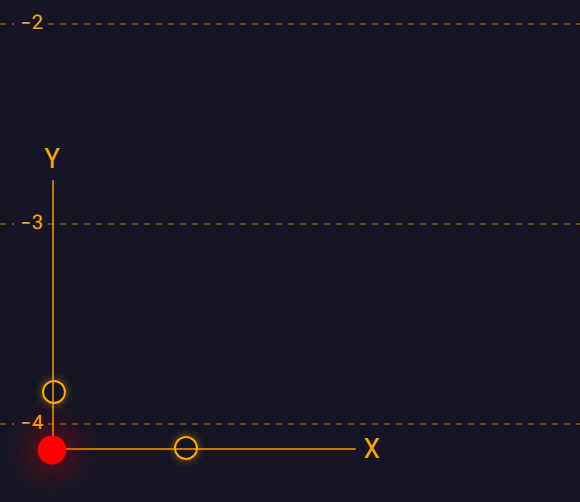
Click the small dot in the bottom-left corner to unfold an X slider (time density) and a Y slider (pitch density). Click the dot again, or anywhere outside, to fold them away.
Both sliders are two views of the same two numbers as Settings → Scale, which also lets you type an exact value and widen or narrow the slider limits. The defaults are 1 on each axis, with slider ranges 0.3–2 (X) and 0.3–5 (Y). Whichever control you touch, the other follows, and the values persist across reloads. See Settings.
Selecting
Click a note to select it. The note widget opens with that note's expressions.
You can click a note directly — you never have to select it first to drag it.
| Feedback | Appearance |
|---|---|
| Hover | A thin white outline (1 px). |
| Selected | A white outline (2 px) plus a faint white wash over the note. |
| In a multi-selection | A heavy white outline (4 px). |
Clicking the BaseNote circle selects the BaseNote. Clicking a measure triangle selects that measure.
Overlapping notes: click again
When notes stack at the same place — a chord, or a note sitting inside a measure's triangle — repeated clicks on the same spot cycle down through the stack, top-most first, wrapping around. Click once for the note on top, again for the one under it, and so on.
Clearing the selection
Click empty canvas. This also moves the playhead to the time you clicked, stops playback if it was running, and closes the "+" menu.
Editing notes
All three of these gestures act on one note, whether or not it was selected first.
Move a note in time
Drag the body of the note (anywhere except the arrow column on the left and the pull tab on the right). The cursor shows grab over a body and grabbing while you drag.
- The start time snaps to a quarter of a beat — a sixteenth note when the beat is a quarter note. The beat length comes from the tempo in effect at that note.
- A note can never be dragged to start before the BaseNote.
- Notes that depend on the one you are dragging preview their new positions as you go.
- Dragging changes start time only. Nothing you drag ever changes a pitch — pitch comes from the arrows or from the expression.
On touch, the drag commits after about 6 px of travel; before that a second finger still wins the gesture back for pinch-zoom.
Resize a note
Drag the pull tab — the strip on the inner-right edge of the note, about half the note's height wide. The cursor turns into ew-resize.
Duration snaps to the same quarter-beat grid, and cannot go below one grid step.
Transpose a note
The arrow column is on the inner-left edge of the note, split at the midline: the upper half is ▲, the lower half is ▼. Tap either one.
- It is a tap, not a drag — moving more than about 4 px cancels it and nothing happens.
- The arrows apply the interval configured in Settings → Arrows, which defaults to an octave (×2 up, ×1/2 down) but can be any ratio you choose.
- Turning Settings → Arrows → Show note arrows off removes both the glyphs and their click regions, so there is nothing left to hit by accident.
- Silences have no arrows.
Measures
A measure bar is a note too — it has a start time and takes part in the dependency graph — but it is drawn as a vertical line rather than a rectangle.
You select and drag a measure by its triangle handle at the bottom of the screen, not by its line. The line itself is not clickable. Drag a triangle and the measure moves; the measures downstream of it in the same chain follow.
Measure chains are what a measure([N]) reference in a start-time expression resolves against — see Expressions for the helper functions.
Multi-note selection
You can hold several notes at once and act on the whole set.
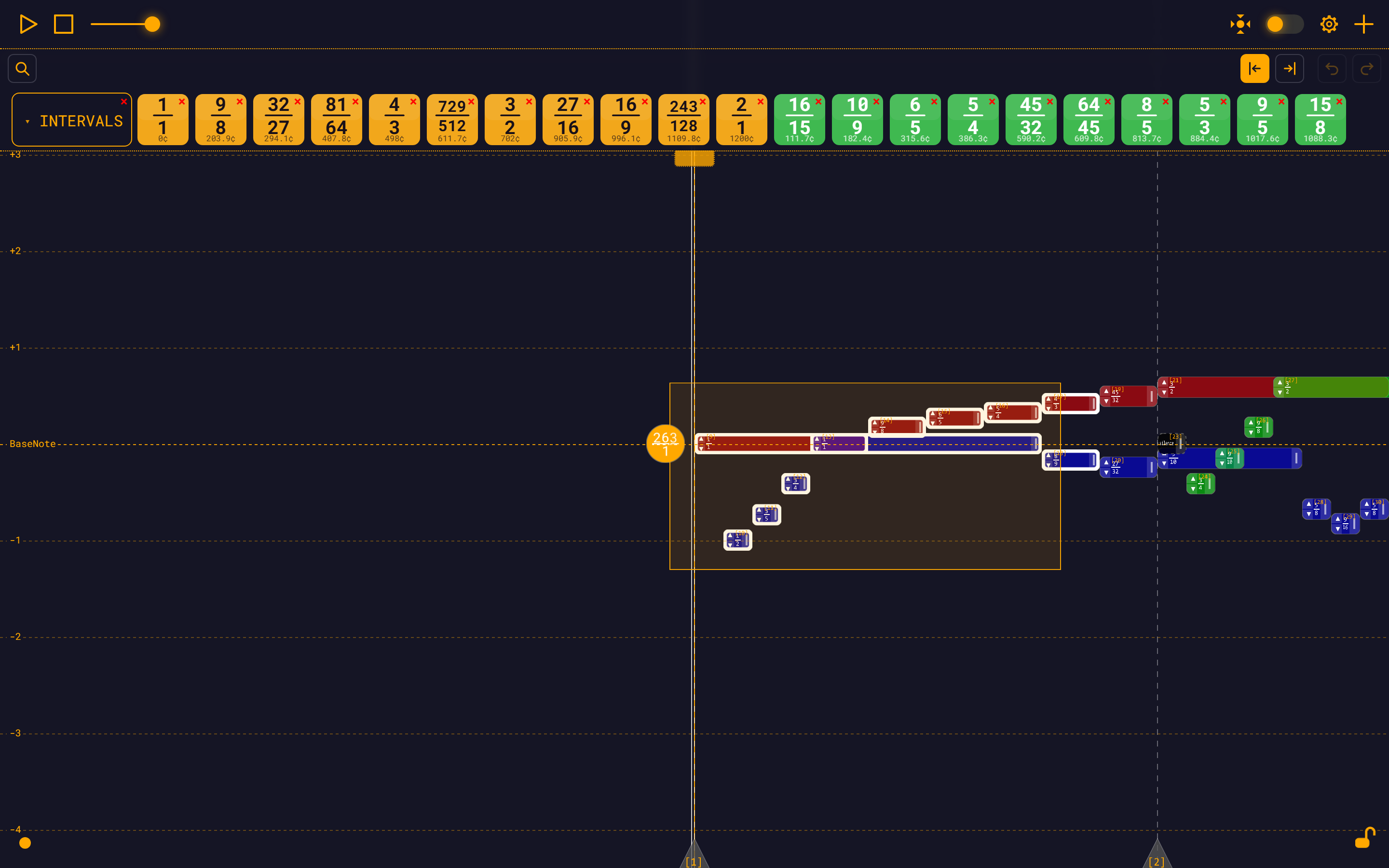
| Gesture (mouse) | Gesture (touch) | Result |
|---|---|---|
| Shift + drag on empty canvas | Long-press empty canvas (500 ms, hold still), then drag | Rubber-band marquee. |
| Shift + click a note | Long-press a note (500 ms) | Toggle that note in or out of the selection. |
| Drag a note that is already in the selection | Same | Group drag — the whole set moves in time as one undoable edit. |
| Plain click on empty canvas | Plain tap | Clear the selection. |
Notes on the rules that catch people out:
- The marquee selects by overlap, not containment.
- The BaseNote and measure bars are never part of a multi-selection.
- With a selection already live, a marquee adds to it. With nothing selected, it replaces.
- Shift-clicking empty background does nothing — it will not throw your selection away.
- A plain click on a note that is in the selection drops the group and selects just that note.
With two or more notes selected, the group widget appears with Copy to Modules and Delete all. Full detail: Multi-Note Selection.
Dependency highlights
Select a note and RMT Compose shows every note it is related to, coloured by the property that connects them. You get two things at once: a ring around each related note rectangle, and a line drawn from the selected note to each one.
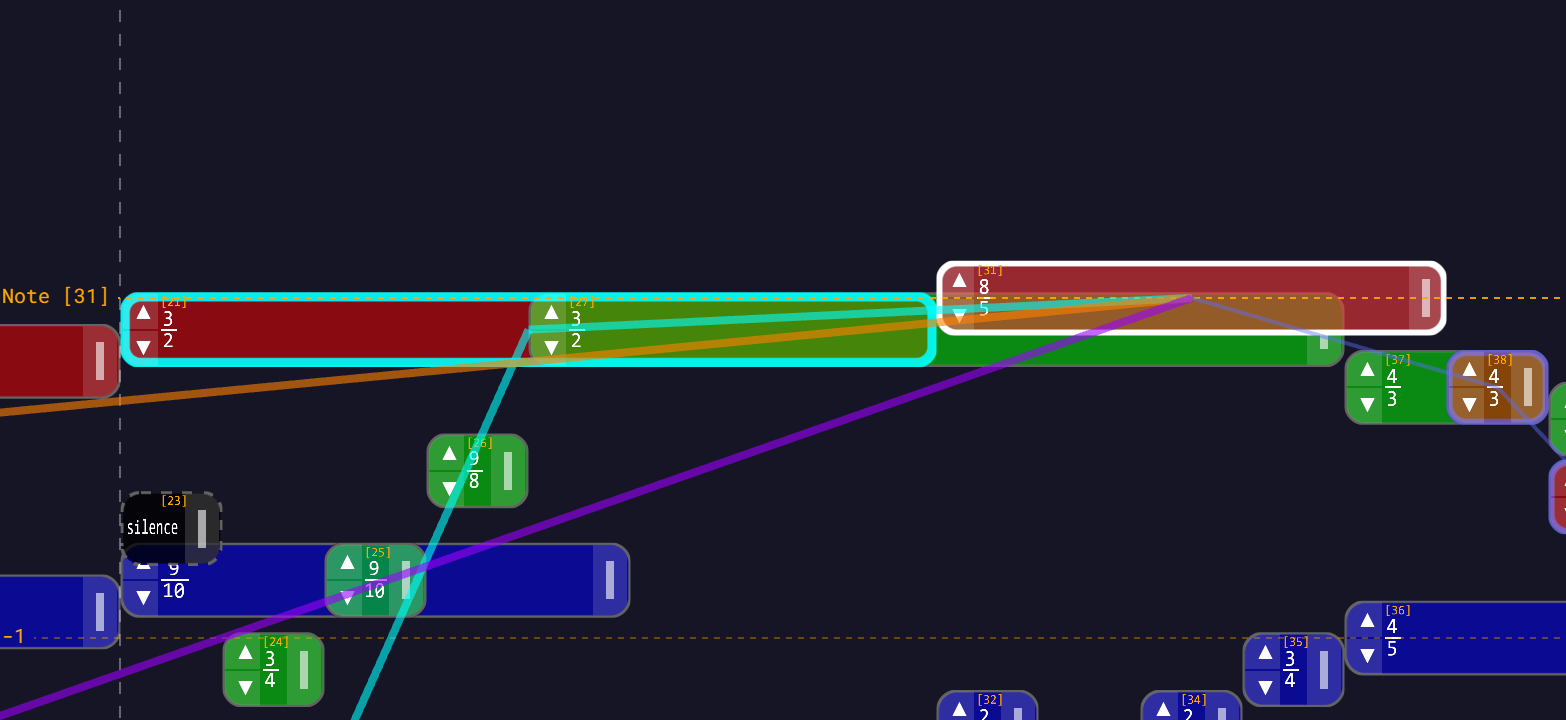
| Colour | Property |
|---|---|
| Orange | frequency |
| Teal | startTime |
| Purple | duration |
Thickness tells you which way the arrow of dependency points:
| Ring / line | Meaning |
|---|---|
| Thick, bright | The selected note depends on these. The line is drawn as connected segments along the whole ancestor chain for that property, all the way back to the BaseNote — not just the direct parent. |
| Thin, faint | These depend on the selected note. |
While you are dragging or resizing, the properties that are not changing are dimmed, so the ones that matter stand out: a body drag emphasises the teal start-time highlights, a pull-tab resize emphasises the purple duration highlights.
The three "Dependency highlights" colour pickers in Settings → Appearance are what set these colours — each preset ships its own orange/teal/purple family, and you can override any of the three.
Locking
The floating padlock at the bottom-right of the viewport — its tooltip reads Lock Notes — freezes the canvas. While it is locked, notes cannot be picked, hovered, dragged, resized, transposed or multi-selected, and the current selection is cleared. Panning, zooming, playback and clicking the canvas to move the playhead all still work.
The app starts unlocked, and the lock is not saved: it is unlocked again after a reload.
Lock before you demo a finished piece, or when you want to scroll around one without nudging it.
Themes
The canvas is drawn from the active theme. The default is Classic Orange; three more presets ship (Slate Cyan, Mono Light, High Contrast), one of which is light. Note geometry — height, border thickness, corner radius — is adjustable too. See Themes & Appearance.
The selection and hover rings and the dependency-highlight colours are all themed too, each behind its own picker.
Note body colours are not part of the theme: they are per-note data. A new note takes the colour of the note it is created against, or a random hue if there is none, and you can change it from the note widget's COLOR row.
Performance
The workspace renders with WebGL2 using instanced draw calls, so a module with thousands of notes still pans and zooms smoothly. Picking, hover testing and marquee hit-testing all run on the CPU against the same instance buffers.
Requirements
WebGL2 is required. Without it the workspace does not initialise. Every current desktop and mobile browser supports it.
Next
- Note Widget — the panel that opens when you click a note
- Creating Notes — how notes get onto the canvas in the first place
- Keyboard Shortcuts — the complete key and gesture list
- Mobile — the same gestures with a finger