Mobile
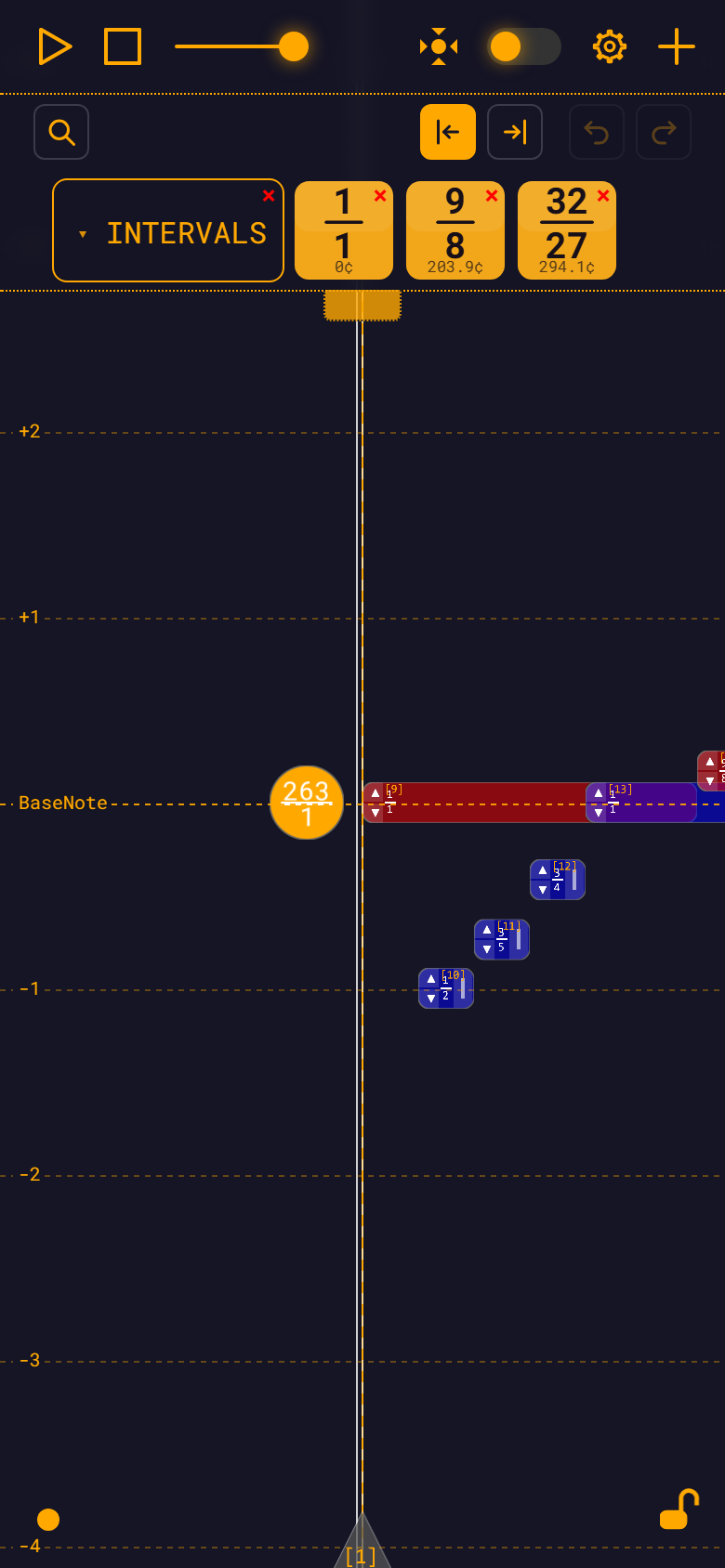
RMT Compose runs in a mobile browser. It is the same app, not a cut-down version: the same top bar, the same module library, the same floating panels, the same workspace. What changes is how you drive it.
Touch is a first-class path, not a retrofit. Every target on a note — the body, the pull tab, the ▲/▼ arrows — is a real hit region that responds to a finger exactly as it does to a mouse. Nothing in the workspace is hover-only.
The gestures
| Gesture | Result |
|---|---|
| One-finger drag on empty background | Pan the view. |
| Two fingers | Pinch-zoom, and drag the pinch centre to pan at the same time. |
| Tap empty background | Move the playhead there, and clear the selection. |
| Tap a note, a measure triangle or the BaseNote circle | Select it and open the note widget. |
| Tap the same spot again | Cycle down through whatever is stacked under your finger. |
| Drag a note's body | Move it in time. |
| Drag a note's right-hand pull tab | Resize it — change its duration. |
| Tap a note's ▲ or ▼ arrow | Transpose it by the arrow interval (default: an octave). |
| Drag a measure-bar triangle | Move the measure and its chain. |
| Long-press empty background | Start a marquee selection. |
| Long-press a note | Add it to, or remove it from, the multi-selection. |
| Drag a note that is already in the selection | Move the whole group. |
Long-press is your Shift key
There is no Shift on a phone, so the long-press takes its place: hold for half a second, without moving more than about 8 px.
- On empty background it starts a marquee — the same rubber-band rectangle that Shift+drag gives you on a desktop.
- On a note it toggles that note in or out of the multi-selection — the same thing Shift+click does with a mouse.
The long-press is non-committal, which is what makes it safe. Until the half second is up, the gesture is still an ordinary pan (on background) or an ordinary note drag (on a note). Moving too far, lifting early, or putting a second finger down all cancel it, and you get the pan or drag you would have got anyway. The app never takes a gesture away from you on a guess.
Once the marquee has two or more notes in it, the group widget appears.
A second finger always wins.
Put a second finger down at any point and the gesture becomes a pinch-zoom. It cancels a pending note drag, cancels a marquee in progress, and hands the camera back. If a drag ever feels stuck, lift and put two fingers down.
Dragging a note takes a moment to commit
On touch, grabbing a note does not immediately start a move. The app waits until your finger has travelled about 6 px before it commits, so a two-finger pinch that happens to begin on top of a note is still a pinch, not an accidental edit.
The practical effect: taps select, small movements do nothing, and deliberate drags move the note.
Transport
| Gesture | Result |
|---|---|
| Tap Play/Pause | Play, or pause if playing. |
| Long-press Play/Pause | Toggle loop playback — the same half-second hold as the workspace. |
| Tap Stop | Stop and rewind. |
Arming loop from a stopped transport also starts playback. See Transport.
The Play button suppresses the browser's own long-press callout, so holding it does not raise a "copy / share" menu at exactly the wrong moment. Audio is unlocked the instant you touch the button, so the very first long-press on a fresh page makes sound.
Panels on a small screen
The Settings panel, the note widget and the group widget are floating cards you drag by their headers with a finger. None of them becomes a full-screen sheet — the point of a non-modal panel is that you can shove it aside and keep looking at your music.
- Tap a panel to bring it to the front. They share one stacking order, so nothing gets buried.
- A panel can never be dragged under the top bar, and it keeps a margin from every edge of the screen. Only its header has to stay on screen; the body may hang off the bottom, and the panel shrinks itself to fit.
- The note widget opens as a compact card, about 300 px tall, with its variable list scrolling inside. Drag it somewhere with more room and it grows to fit what is below it.
- The "+" menu always fits, footer included, even in landscape.
The module bar by touch
The module bar is fully touch-driven:
- Drag a module icon onto the workspace to import it. A ghost image follows your finger once you have moved about 5 px.
- Drag an icon onto another icon to reorder or re-categorize it.
- Drag near the top or bottom edge of the grid while dragging and the grid scrolls itself.
- Tap a section's label chip to collapse or expand it.
- Drag the pull tab to resize the bar's height.
- On a touch device the library's scrollbar is widened and its thumb is given a minimum height, so it is grabbable with a finger rather than being an 8 px hairline.
If the icons are too small to hit comfortably, raise Icon size in Settings → Library — it goes up to 96 px.
What differs from desktop
| Desktop | Mobile |
|---|---|
| Wheel / Ctrl+wheel zoom | Two-finger pinch |
| Shift+drag to marquee | Long-press empty background |
| Shift+click to add a note to the selection | Long-press the note |
| Hover ring and cursor hints show you what a region does | No hover — the regions are still there, they just cannot preview themselves |
Ctrl/Cmd+Z to undo, Ctrl/Cmd+Y or Ctrl/Cmd+Shift+Z to redo | Use the Undo and Redo entries in the "+" menu, or the buttons in the library toolbar |
Undo and redo are the app's only global keyboard shortcuts — the rest of the keyboard surface is Escape, scoped to whichever panel or dialog is in front of you. So unless you have a hardware keyboard attached there is effectively no keyboard path on a phone, and everything is reachable by touch. See Keyboard Shortcuts.
Pinch-zoom belongs to the app
Pinch-zooming the page is disabled. A pinch is always a camera zoom in the workspace, never a browser zoom — otherwise the two would fight over every gesture. For the same reason, the workspace canvas swallows browser scrolling: a drag on the canvas moves the camera, and never the page.
Rotation and the on-screen keyboard
The app measures the screen it has actually been given rather than trusting the browser's own report, which on a phone is wrong often enough to matter. Two consequences you can rely on:
- Rotate the device and panels, menus and the canvas re-fit themselves to the new shape. The app re-measures until the number stops moving, so a browser that lies for the first few frames after a rotation does not leave you with a misplaced panel.
- Tapping into a text field does not resize the workspace. The on-screen keyboard covers the app; it does not reflow it. Your view is where you left it when the keyboard goes away.
Things to know on a phone
Playhead Tracking locks horizontal panning.
If you cannot pan sideways, the Playhead Tracking toggle in the top bar is on. It pins the playhead to the centre of the screen by design, and it also disables the Reset View button.
Lost? Reset the view.
The Reset View button in the top bar re-centres the camera on the BaseNote without changing your zoom.
The Lock Notes button in the bottom-right corner is worth knowing on a touch device: with it on, no note can be selected, moved, resized or transposed, and the hover ring stops appearing. Panning and zooming still work, and a tap still moves the playhead — so it is a good way to listen your way around a finished piece without editing it by accident. The app always starts unlocked. See Locking.
Next
- Keyboard Shortcuts — the desktop side of every gesture on this page
- Multi-Note Selection — what to do with a marquee once you have one
- Workspace — the full gesture reference, mouse and touch side by side