Transposing with Arrows
Every note with a frequency carries a narrow column on its left inner edge, split in half: a ▲ in the upper half, a ▼ in the lower half. Click a half and the note's frequency expression is multiplied by an interval — up or down — and rewritten in place.
The interval is not fixed to the octave. It is whatever you set in Settings → Arrows, and it defaults to the octave (×2 up, ×½ down).
Using the arrows
| Where | The left-hand column of the note. The column scales with zoom, so it stays clickable. |
| Gesture | A single click or tap. Move more than ~4 px and it is treated as an abandoned drag — nothing happens. |
| Hover | The half under the pointer brightens, and the cursor becomes a small up- or down-pointing triangle. |
| Selection | Clicking an arrow does not change what is selected. |
| Playback | If the composition is playing, the click pauses it first. |
| Undo | Each press is one undo step. |
| Locked notes | The padlock (Lock Notes) makes the arrows inert, like everything else in the workspace. |
Notes that depend on the transposed note re-evaluate and follow it automatically.
A thin dead zone runs along the note's exact midline and resolves to the note body, so a click at mid-height selects the note instead of transposing it by accident.
Silences have no arrows — a silence has no frequency to multiply. The BaseNote is drawn as a circle and has no arrow column in the workspace, but you can still transpose it from the note widget (below), and the whole composition moves with it.
The arrows in the note widget
Open a note in the note widget and the same ▲ / ▼ pair sits at the right end of the frequency row's Evaluated: line.
The tooltips name the live interval: Transpose up ×2 / Transpose down ×1/2 by default, Transpose up ×3/2 / Transpose down ×2/3 if you set the arrows to a fifth. This is the only place the app tells you the current interval other than the Settings panel — the arrows on the canvas are always drawn as plain ▲/▼ glyphs, never labelled with a ratio.
Change an arrow setting while the widget is open and the widget rebuilds itself, so the buttons and tooltips can never go stale.
Choosing the interval
Open the Settings panel from the gear button in the top bar and pick the Arrows tab. The panel is not modal and every change applies immediately — no OK, no Apply.
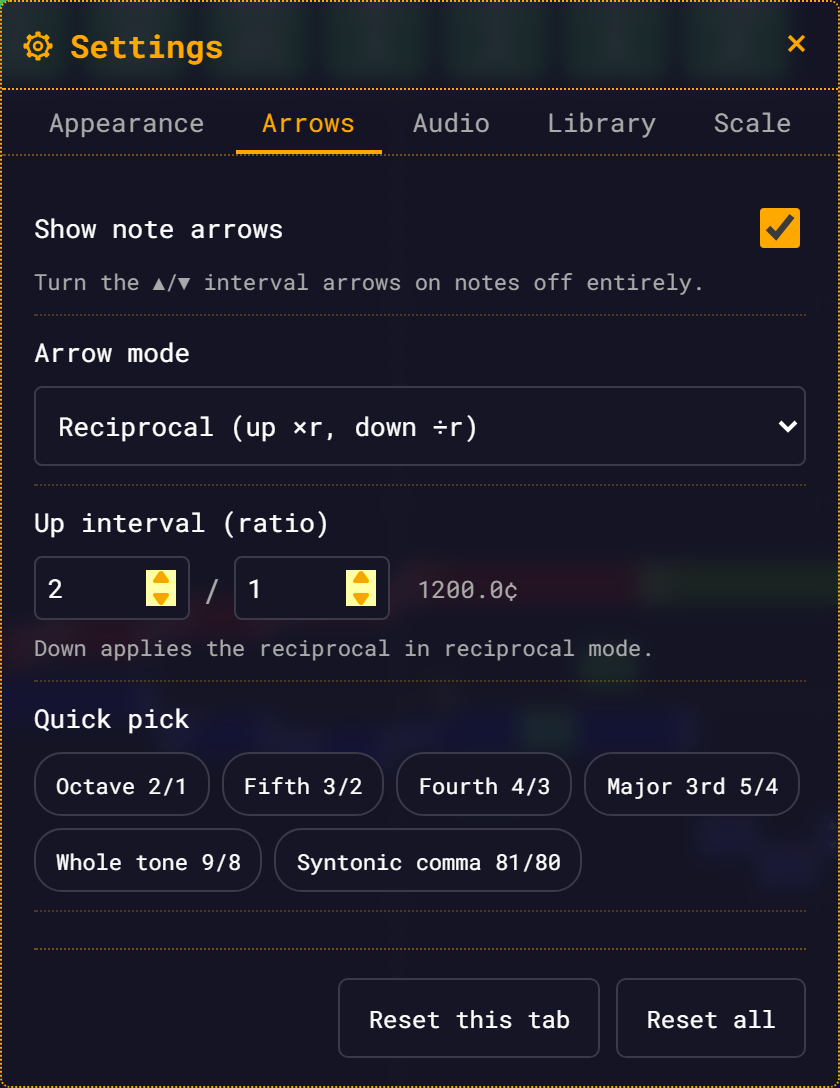
| Row | Control |
|---|---|
| Show note arrows | Turns the ▲/▼ arrows off entirely |
| Arrow mode | Reciprocal (up ×r, down ÷r) or Independent up/down |
| Up interval (ratio) | Two number fields, n / d, with a live cents readout |
| Quick pick | Six one-click intervals |
In reciprocal mode — the default — you only set the up interval, and down is derived as its inverse. Set up to 3/2 and down becomes 2/3. Set up to 81/80 and down becomes 80/81.
The cents readout updates as you type: 1200 × log2(n/d), to one decimal place. A fifth reads 702.0¢, an octave 1200.0¢.
Quick pick
| Chip | Ratio | Cents |
|---|---|---|
| Octave 2/1 | 2/1 | 1200.0¢ |
| Fifth 3/2 | 3/2 | 702.0¢ |
| Fourth 4/3 | 4/3 | 498.0¢ |
| Major 3rd 5/4 | 5/4 | 386.3¢ |
| Whole tone 9/8 | 9/8 | 203.9¢ |
| Syntonic comma 81/80 | 81/80 | 21.5¢ |
Clicking a chip writes the ratio into the n / d fields and updates the cents readout.
What counts as a valid ratio
| Rule | |
|---|---|
n and d | Positive whole numbers |
| Range | The ratio must be between 1/16 and 16, inclusive |
| Not 1 | A ratio of 1 would do nothing, so it is rejected |
If what you type breaks any of those rules, the ratio heals to the value you had before — an invalid numerator or denominator restores just that field from your previous ratio, and a ratio that lands out of range (17/1) or equal to 1 (3/3) reverts wholesale. The number fields have no maximum, so nothing stops you typing it; the panel just rewrites the fields with your previous value. Only a corrupt settings store loaded fresh — where there is no previous value — falls back to the default octave 2/1.
Nothing forbids an "up" ratio below 1. Set up to 1/2 and ▲ transposes down. That is allowed, not a guard rail.
In Independent up/down mode the tab shows a second Down interval (ratio) row, with its own cents readout, below the up editor. (In reciprocal mode the row is hidden — down auto-derives as the reciprocal, so the row would just repeat the up editor upside-down.)
Your arrow settings are saved in the browser and survive a reload. Reset this tab puts the Arrows tab back to its defaults. See Settings for the whole panel.
What happens to the expression
An arrow press rewrites the note's stored frequency expression. It does not freeze the note to a number — the note keeps its dependencies, and everything downstream of it follows.
The multiplier is folded into the expression's existing coefficient rather than stacked in front of it. Stepping up and back down therefore returns you to exactly what you started with, instead of leaving a trail of multipliers:
| Expression | Press | Result |
|---|---|---|
base.f | ▲ (octave) | 2 * base.f |
2 * base.f | ▲ again | 4 * base.f — folded, not 2 * 2 * base.f |
4 * base.f | ▼ | 2 * base.f |
2 * base.f | ▼ | base.f — the coefficient of 1 disappears |
base.f | ▲ (fifth) | (3/2) * base.f |
(3/2) * base.f | ▲ again | (9/4) * base.f |
(3/2) * base.f | ▼ (÷3/2) | base.f |
[3].f | ▲ (octave) | 2 * [3].f |
(5/4) * [3].f | ▼ (octave) | (5/8) * [3].f |
base.f | ▲ (syntonic comma) | (81/80) * base.f |
Whole-number coefficients print bare (2); fractional ones print in parentheses ((3/2)), because that is what the expression language reads as a single literal.
Sums and power terms
The factor multiplies the whole expression, every term of it:
base.f + 10 ▲ octave → 2 * base.f + 20A power term is left alone — the coefficient never migrates into it, so a TET note keeps its tuning and keeps its crosshatch:
base.f * 2^(7/12)        ▲ octave →   2 * base.f * 2^(7/12)
2 * base.f * 2^(7/12) ▼ octave → base.f * 2^(7/12)The same folding applies to a note whose frequency is still stored in legacy syntax, including a .pow() (crosshatched, TET) chain: repeated presses rescale one leading new Fraction(a, b).mul(…) coefficient rather than nesting a new wrapper per press, and ▲ followed by ▼ returns the exact original expression.
The rewrite is checked before it is kept: the new expression must evaluate to the old value times the factor, and must not change the note's corruption flag. If either check fails, the app falls back to an explicit multiplier wrapped around the whole expression, so the pitch is always right even when the expression cannot be tidied.
One note at a time
The arrows act on the single note you clicked. There is no group transposition — selecting several notes and pressing an arrow is not a thing (see Selection & Group Editing) — and there is no keyboard shortcut for transposition.
Turning the arrows off
Uncheck Show note arrows and three things happen:
- The ▲/▼ glyphs and their columns disappear from every note.
- Their click zones go with them. A click where the arrow column used to be now hits the note body, selecting it or starting a drag. There are no ghost hit regions left behind.
- The
[id]label and the frequency fraction on each note reflow leftward into the reclaimed space, and the ▲/▼ buttons vanish from the note widget.
The ratio editor and the quick-pick chips stay on screen, dimmed but still editable — whatever you set takes effect the moment you switch the arrows back on.
Where to go next
- Editing Notes — the other ways to change a note's pitch, timing and length.
- Pure Ratios — the intervals worth binding to an arrow, and why a comma nudge is useful.
- Settings — the rest of the Settings panel around the Arrows tab.