Selection & Group Editing
Most of the time you work on one note: you click it, it gets a selection ring, and the note widget opens on it.
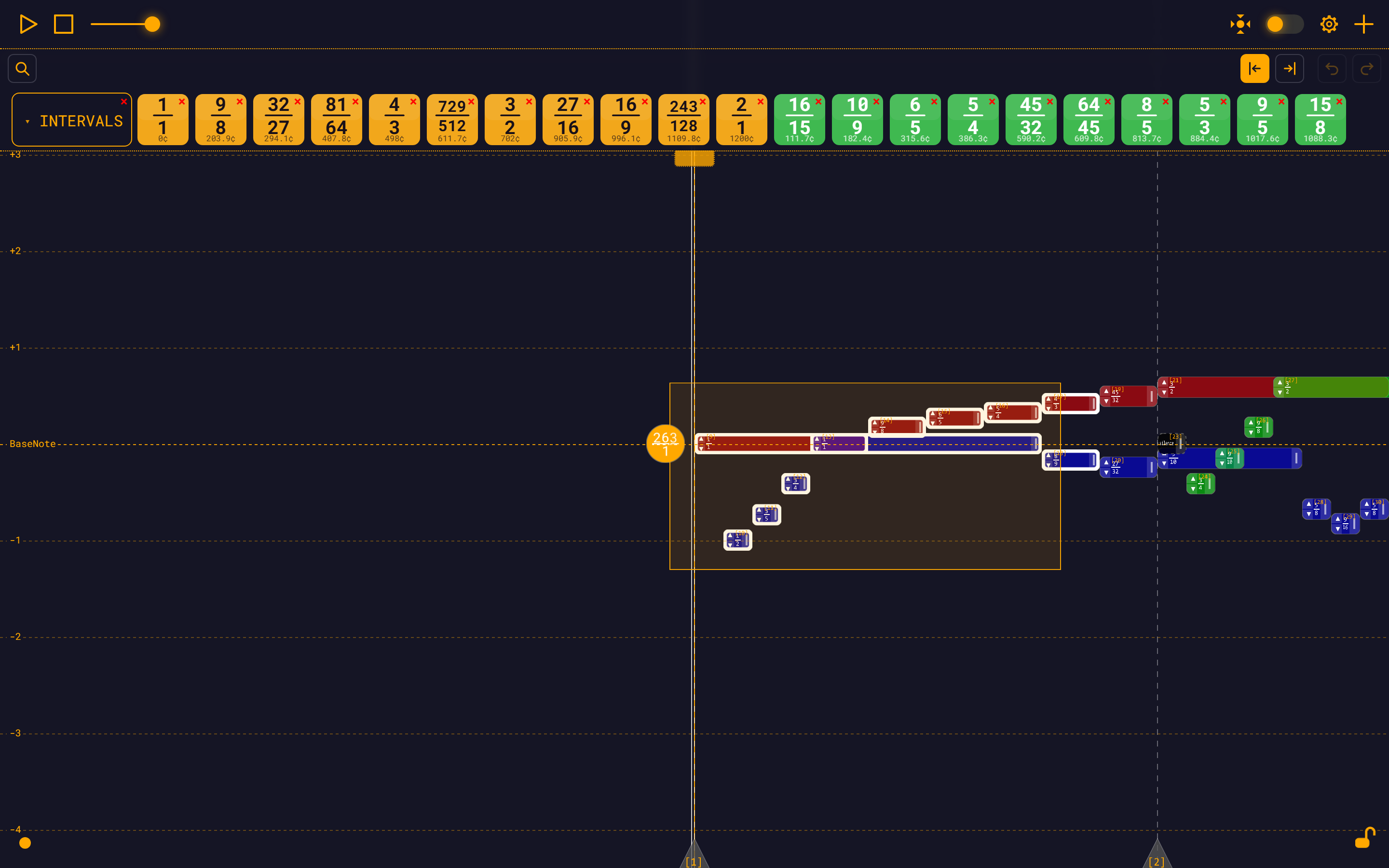
Select two or more notes and the app switches presentation. The selected notes get a heavy selection ring (white in the default theme — the Selection ring picker in Settings → Appearance sets it), the note widget closes (with a group there is no single note for it to describe), and a floating group widget appears with the count and two actions: Copy to Modules and Delete all. Drag any note in the set and the whole group moves as one.
A group of exactly one note is not a group. However you get there — a lone shift-click, a marquee that caught one note, removing notes until one is left — it normalizes back to an ordinary single selection with the ring and the note widget.
Before you start: unlock the notes
Multi-select does nothing while the workspace is locked. The padlock (Lock Notes) — the small button pinned to the bottom-right corner of the window — kills all picking, hovering, dragging and selection.
The lock is off by default, so on a fresh page you can select straight away. If nothing you click responds, check the padlock first.
Gestures
| Desktop (mouse or pen) | Touch | |
|---|---|---|
| Marquee on empty background | Hold Shift and drag | Long-press empty space (hold ~½ second without moving), then keep the finger down and drag |
| Toggle one note in or out | Shift + click the note | Long-press the note (it toggles as soon as the press fires, while your finger is still down) |
| Move the group | Drag the body of any note that is already selected | Same — press a selected note and drag |
| Select just one note (drops the group) | Plain click the note | Plain tap the note |
| Clear the selection | Plain click empty background, or the widget's × / Clear selection | Plain tap empty background, or × / Clear selection |
Long-press is the touch equivalent of Shift. It is deliberately non-committal: moving more than about 8 px, putting down a second finger, or lifting early all cancel it. Panning, pinch-zoom, note dragging and quick tap-to-select behave exactly as before.
TIP
A second finger always wins. Put one down mid-marquee and the gesture goes back to the camera as a pinch-zoom — the selection you had before the drag is restored.
Adding to a selection
- Shift-click / long-press a note toggles it: in if it was out, out if it was in.
- Click one note, then shift-click a second, and you get a group of two — the first note is promoted into the group rather than dropped.
- A marquee adds to whatever is already selected. There is no separate "add" modifier: with a group live you always get the union; with nothing selected the marquee replaces. To start a fresh marquee, clear the selection first.
- Shift-click on empty background does nothing. A stray miss while you are refining a selection will not throw it away.
What can be selected
Notes only — including silences. The BaseNote and measure bars are never part of a group: a marquee dragged across them does not pick them up, and shift-clicking one does nothing. They are still selectable, movable and deletable on their own.
The marquee selects by intersection: any note the rectangle touches is caught, even partly. You do not have to enclose a note completely. Notes light up with the selection ring as the rectangle crosses them, before you release.
The group widget
The widget appears as soon as two notes are selected and hides itself when the selection drops to one or none. It opens bottom-right, is dragged by its header, and is not modal — you keep composing, playing and panning with it up, and clicking it never clears the selection.
| Part | What it does |
|---|---|
| Header | The live count: "5 notes selected" |
| × | Clears the selection (same as Clear selection) |
| Copy to Modules | Saves the selection to the library's Custom section. Non-destructive. |
| Delete all | Deletes the selected notes, behind a confirmation |
| Clear selection | Deselects everything |
Pressing Escape clears the selection, but only while focus is already inside the widget (for example, right after you tab into it). There is no global Escape-to-deselect and no Delete-key shortcut — see Keyboard Shortcuts.
Moving a group
Drag the body of any selected note and the whole group moves in time. Vertical position is not part of the drag, exactly as with a single note. Every selected note — and everything anchored to one — ghosts to its would-drop position while you drag.
What happens on drop:
- Relationships survive, not just positions. A selected note that is anchored (directly or transitively) to another selected note is not rewritten at all — its anchor's move already carries it. If note 2 is
[1].t + [1].dand you drag notes 1 and 2 together, note 2's expression stays[1].t + [1].d. - Only "root" notes of the selection — those with no selected note anywhere in their start-time chain — get a new start time.
- Notes outside the selection that depend on a moved note follow it. Their expressions are normally left alone — this is what keeps a phrase intact when you drag the note it hangs off. The one exception is a dependent that would end up before the note it hangs off: it is re-anchored to the nearest ancestor that still starts early enough. This is the same repair a single-note drag runs.
- The whole batch is clamped so no selected note lands before the BaseNote. Internal spacing is preserved.
- The move lands as one undo entry. Ctrl/Cmd+Z puts everything back.
- Playback pauses first.
Only the note-body drag is group-aware
Resizing (dragging a note's right-hand tab), the ▲/▼ arrows, and every field in the note widget still act on one note. There is no group resize, group transpose, group instrument change or group colour change.
Also note that a plain click on a note that is in the group drops the group and selects that one note. Use shift-click (or long-press) when you mean to refine the set.
Deleting a group
Click Delete all. A confirmation appears, then:
- Every selected note is removed.
- Notes outside the group that depended on them are liberated, not deleted. The deleted notes' expressions are inlined into whatever still referenced them, so those notes keep their exact positions, lengths and pitches. A direct dependent with no instrument of its own also inherits the deleted note's instrument.
- The whole delete is one undo entry, and the selection is cleared.
WARNING
The confirmation dialog calls the action "irreversible". It is captured in the undo history — Ctrl/Cmd+Z restores the deleted notes.
If you want the opposite behaviour — delete a note and everything that depends on it — select that note on its own and use Delete Dependencies in the note widget. See Editing Notes and Dependencies.
Copy to Modules
Copy to Modules exports the current selection as a self-contained module and drops it into the module library's Custom section.
- The new icon is named Selection (N notes). If that name is taken it becomes Selection (N notes) 2, then 3, and so on.
- A green toast confirms it: Copied to Custom modules as "…".
- If the Custom section is collapsed, it expands so you can see the copy land.
- The copy is saved in your browser's local storage, so it survives a reload. It behaves exactly like a
.jsonmodule you uploaded: drop it onto a note, or onto the BaseNote, to import it. (A drop on empty background is refused — the import needs a target to hang off.) - The action is non-destructive — your selection stays live and your composition is untouched.
- It is not an undo step. It changes the library, not the module. To get rid of a copy, remove its icon from the library.
What the exported module contains
The copy is rooted at its earliest selected note, which lands exactly on the new module's BaseNote. Everything else keeps its offset from that note, so dropping the module somewhere else reproduces the layout verbatim.
The tree survives the trip:
- An expression is copied as written when every note it names travels with it.
[1].t + [1].dstays[1].t + [1].d, with the ids renumbered1..Nin time order. - An expression that reaches outside the selection would dangle, so it is rebuilt against the new base from the note's current value:
base.t + beat(base) * 4,beat(base) * (1/2),(3/2) * base.f. - A note whose start-time chain leaves the selection is always re-anchored to the new base, even if its expression names no note at all. Otherwise it would stay pinned to its original absolute time instead of following the module to wherever you drop it.
- The new module's BaseNote is a copy of the current one — same frequency, tempo and meter — so
base.f,beat(base)andtempo(base)keep meaning what they meant. Pitches survive as ratios, not frozen numbers, which is what lets the copy transpose correctly when you drop it on a different note. - Per-note colour and instrument come along when they are set.
A five-note phrase chained end to end comes out with these start times (the exported file also carries a baseNote and each note's duration and frequency):
{
  "notes": [
    { "id": 1, "startTime": "base.t" },
    { "id": 2, "startTime": "[1].t + [1].d" },
    { "id": 3, "startTime": "[2].t + [2].d" },
    { "id": 4, "startTime": "[3].t + [3].d" },
    { "id": 5, "startTime": "[4].t + [4].d" }
  ]
}Drop that copy back on the note it came from and it lands on top of itself. See The Module Library for what you can do with it afterwards.
What clears a selection
Clears it: a plain click or tap on empty background (which also moves the playhead), a plain click on any note, the widget's × or Clear selection, locking the workspace, undo or redo, and loading a module.
Does not clear it: clicking inside the group widget, the note widget, the Settings panel, the gear button, or the library toolbar — and any shift-click.
Where to go next
- Editing Notes — everything you can do to the single note a plain click selects.
- Dependencies — why deleting a group liberates its dependents instead of taking them along.
- The Module Library — where a Copy to Modules selection ends up, and how to manage it.